Your shopping cart is empty!

MENU
Your shopping cart is empty!
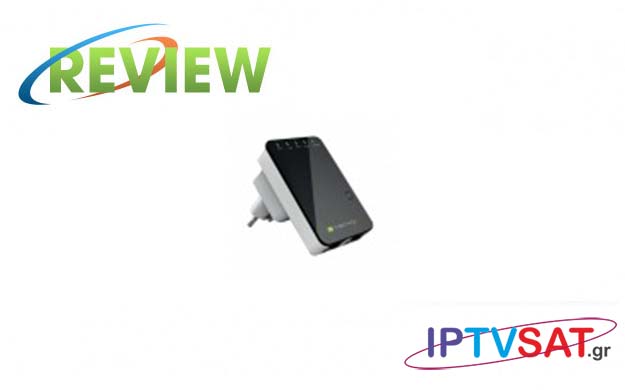
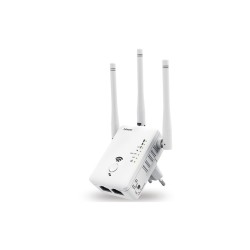
We tried a very interesting "multi-tool" network, Techly's I-WL-Repeater2, which is a combo wired / wireless network connection device, specially designed for small businesses, offices and homes.
Techly I-WL Repeater 2 supports the 802.11 N standard, compatible with the IEEE802.11 b / g standard, providing data transfer speeds of up to 300 Mbps. The mini router can improve data transfer speeds and expand the range of WiFi coverage that already works in your space.
The small size of this device is ideal for travel, allowing the user to navigate the Internet wherever there is a network, as it provides high speed WiFi signal.
Techly I-WL-REPEATER2 fully supports IEEE 802.11b / g / n, IEEE 802.3, IEEE 802.3u, and can work as a Router, Client, Bridge, Repeater (Range extender) and Access Point, while providing Ethernet WAN 10 / 100Mbps Auto-Negotiation with QoS that ensures VoIP quality and multimedia streaming.
Also, the operating frequency range is in the range of 2,412-2,472GHz, while it supports SSID, WMM and WMM-APSD broadcast control, as well as 64/128/152-bit WEP, 128-bit WPA (TKIP / AES).
The user interface supports software updates, backups and restore from an existing settings file, while providing an installation guide for more convenience. Also, the 2T2R MIMO provides better performance than the conventional 1T1R, while it has 2 built-in 3dBi antennas.
In the package you will find in addition to the mini wireless router, an RJ45 1 m network cable and instructions for use.
Techly I-WL-REPEATER2 has a small size ( 48x50x74 mm ) and a weight of 200 grams, while it has a built-in socket for direct connection to the mains. On the front we find 5 LEDs for power, WLAN, WPS, WAN and LAN, WPS button for connection between the mini router and another device with the push of a button, while on the side there is a hole for reset (pressure with the connector tip for 10 seconds).
In terms of connections, we have a LAN 10 / 100M Auto MDI / MDIX RJ45 port and a WAN 10 / 100M Auto MDI / MDIX RJ45 port.
Techly I-WL-REPEATER2 is a multi-dimensional network device, as depending on the setting we apply, it can work as a Router, Access Point, Repeater and Wireless ISP.
As a router, Techly connects to the Internet via the WAN port and then other terminals can be connected to Techly via a wireless connection (WiFi) or via the LAN port with an Ethernet cable.
Techly in Access Point mode can be connected via the LAN port to the basic uplink router with an Ethernet cable and then any WiFi device can be connected wirelessly to Techly via WiFi.
Extending the existing network: Techly in Repeater mode can be connected to the basic wireless uplink router via WiFi and then other terminals can be connected to Techly wirelessly via WiFi or wired via Ethernet ports.
With this feature, Techly can connect to the main uplink router via WiFi and at the same time extend the wireless signal to connect other devices.
Adding a wireless device with WPS depends on the device, but as far as Techly is concerned, all you have to do is press the WPS button for 2-3 seconds and then do the same for the wireless adapter on your device.
.jpg) | .jpg) | .jpg) | .jpg) | .jpg) |
 .jpg) | .jpg) | .jpg) |
In order to access all the options of the mini router, we scan the wireless networks with a PC or laptop and find the Network Techly - Open. After connecting to this network, we enter the IP 192.168.10.253 in a browser and the first page for login appears on the web interface. Enter the admin / admin details, select a language between Italian and English and click Submit. As a result, the full options page appears.
Clearly, we recommend using Wizard with the 4 basic operating options Router, AP, Repeater and Wireless ISP.
Note: After completing any settings in the Web browser and after restarting its software, you will lose access to the web browser, as your computer will not be on the same network, however this is normal. If you want to access the web browser again, you'll need to manually set up an IP of 192.168.10.xx where xx up to 252 or reset Techly from the hole on the side.
In the following video, you can see the Web Interface in operation:
For the Router function, you need to connect the WAN port to your main uplink router, select the first Automatically obtain an IP address (dynamic IP) and enter the data of the wireless network you want, ie SSID, Channel ( Auto or 1-13) and clearly Security Mode preferably WPA2 Personal with some key of your choice. By clicking on Save & Reboot you are ready. Now, you can connect via WiFi to the network you created or through the LAN port, but the mini router - as mentioned - will need to be connected to the internet via the WAN port.
Finally, in the package you will find - in addition to the receiver - a remote control, 2x batteries (AAA type) and instruction manual.
In this setting, we simply create a wireless network in the same way and permanently connect Techly via the LAN port, to a socket on our main uplink router. In this case, we will have wireless access to the network we have created, wherever there is a sufficient signal in the space. Note that even in this case, Techly must be permanently connected to our main router with an Ethernet cable.
At the bottom of the Web Interface, you'll find the Advanced option, which displays a page with several more specialized settings, namely: Network, Wireless, Firewall, Advanced, and Status. For standard home use it will not require any intervention, however in a small business or office, an administrator can find useful settings, such as accessing the WAN Web server, static DHCP, hiding SSID on WiFi, activating Ad hoc network, setting WiFi, WDS, Firewall, Port forwarding, Dynamic DNS for remote access and much more!
At the top of the page, we find after Wizard, basic settings for WiFi, LAN and WAN access modes (Static IP, DHCP, PPPoE, PPTP).
We also have the ability to adjust time zone, Backup & Reset, as well as firmware upgrade.
We configured Techly I-WL-REPEATER2 in all possible ways, such as router, AP, repeater and WISP and we did not encounter any problems. The operation as a repeater was uninterrupted, while in the Wireless ISP function we also created an additional wireless network, which showed excellent behavior and extensive coverage in the area. We also connected various devices via Ethernet to all functions and had an immediate effect. In general, Techly satisfies the user, while to a network connoisseur, it offers several additional management tools!
Techly I-WL-REPEATER2 is a multi-tool network, with many functions for all network access applications, suitable for both small businesses and home use. Its use is not limited to repeater debts, as it can work as Router, Client, Bridge, Repeater and Access Point, with the ability to enhance functions through the 2 Ethernet ports. Excellent!
Source: IPTVSAT.gr
Author: Periklis Pantoleon
-250x250.jpg)


-250x250.jpg)




-55x55.jpg)


